

Connect WhatsApp Business API to Instantbroadcast ?
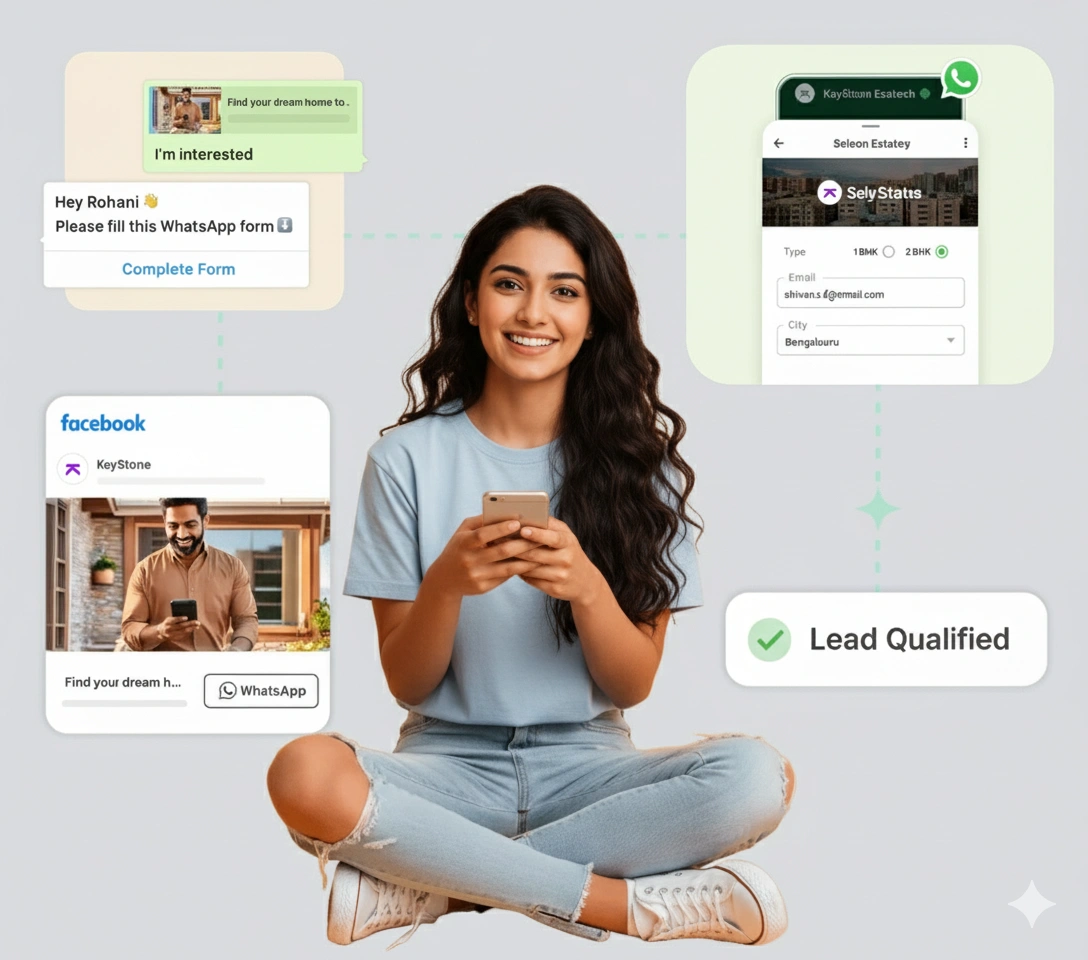
How to Connect Your WhatsApp Business Account to Instant Broadcast
To use Instant Broadcast’s WhatsApp messaging and campaign features, you need to connect a verified WhatsApp Business Account.
1. Download the Instant Broadcast App
Visit the Google Play Store or Apple App Store, search for Instant Broadcast, and install the app.
2. Sign Up and Accept Terms
Open the app, click Sign Up, enter your email, password, business name, and other required details. Accept the Terms & Conditions to continue.
3. Access Your Profile
After signing in, open the Profile section from the menu or bottom navigation.
4. Set Up WhatsApp Business Account
In Profile, click Setup WhatsApp Business Account.
5. Complete Meta Verification
Follow the on-screen instructions to connect your WhatsApp Business Account. Provide your business information and eligible phone number, then complete Meta’s verification process.
6. Grant Permissions
Allow the required WhatsApp Business Messaging and WhatsApp Business Management permissions when prompted.
7. Verify the Connection
After successful setup, return to Instant Broadcast and confirm that your WhatsApp Business Account is connected and ready to use.
Tip: Keep your business information ready before starting the setup. Also, make sure your phone number meets Meta’s current WhatsApp Business requirements.